 How-to
7 Steps to Automate Your Grocery List for Efficiency
Last Updated: October 24, 2026
Quick Summary
To automate your grocery list for efficiency, pick a meal planner that links recipes to ingredients, then generate a grocery list from the week's meals so quantities are calculated by servings. Add a reusable template of staples, track what you already own with a pantry inventory app, and share the list so your household syncs in real time.
- A meal planner with grocery list features links each recipe to its ingredients and builds the list in one tap.
- Set correct servings before generating the list so ingredient quantities scale properly.
- A grocery list template holds recurring staples like produce, protein, dairy and pantry basics that reset weekly.
- Sort items by store aisle so the path through the store is one clean loop.
- Log pantry items on the way in and out, plus a weekly two-minute sweep, to keep inventory from going stale.
Table of Contents
- Why Automating Your Grocery List Saves Hours Every Week
- Step 1: Pick the Right Meal Planner With Grocery List
- Step 2: Automatically Generate a Grocery List From Recipes
- Step 3: Build a Reusable Grocery List Template
- Step 4: Track What You Have With a Pantry Inventory App
- Step 5: Automate List Generation With a Spreadsheet or App
- Step 6: Share the List and Sync Your Household
- Step 7: Keep the Workflow Reliable and Cut Waste
- Frequently Asked Questions
Why Automating Your Grocery List Saves Hours Every Week
Most households lose a surprising amount of time to the same weekly routine: checking the fridge, scribbling items on a scrap of paper, driving to the store, and then realizing the list is missing half of what was actually needed.
The payoff is bigger than a few saved minutes. A grocery list that updates on its own cuts the mental load of meal planning, reduces last-minute takeout, and keeps the kitchen stocked with the ingredients that actually support healthy eating.
The Real Cost of a Manual Shopping List
A manual shopping list is a recurring task, not a one-time chore. Every week it restarts from zero. That means re-checking the pantry, re-writing staples, and re-guessing quantities.
Many households find the bigger cost is decision fatigue. This guide to stopping food decision fatigue explains how to keep that mental load off for good.
Step 1: Pick the Right Meal Planner With Grocery List
The right starting point is a meal planner that turns selected meals into a shopping list.
Look for three things:
- Recipes that connect directly to ingredient lists
- A weekly menu view that shows selected meals at a glance
- One-tap list generation from the week's plan
If the tool cannot push ingredients to a list, it is just a recipe box. The connection between meal and ingredient is what saves time.
Look for these three features when choosing a meal planner that generates a grocery list.
| Feature | What it does |
|---|---|
| Recipes linked to ingredients | Choosing meals automatically produces items to buy |
| Weekly menu view | Shows selected meals at a glance |
| One-tap list generation | Builds the list from the week's plan |
Step 2: Automatically Generate a Grocery List From Recipes
Once meals are selected, the next move is to automatically generate a grocery list from recipes. The planner pulls every ingredient from the chosen recipes into one combined list, so nothing gets missed.
This step removes the most error-prone part of manual planning: remembering every ingredient across multiple dishes. A good tool merges duplicates, so three recipes calling for onions produce a single line.
Calculating Ingredient Quantities and Servings
Quantity calculation is where automation earns its keep. The system multiplies each ingredient by the number of servings planned, then totals overlapping items.
A common mistake is ignoring serving counts. A recipe written for four people doubled for a family of six throws off every quantity. Set the correct servings before generating the list, and the math handles itself.
Step 3: Build a Reusable Grocery List Template
A grocery list template is a saved list of recurring basics that resets each week. It holds the staples a household always needs, so only the changing items require attention.
Start with a core template:
- Produce: greens, onions, fruit
- Protein: eggs, chicken, beans
- Dairy: milk, yogurt, cheese
Each week, add recipe-specific items on top of the template. For a solid starting point, this healthy grocery list guide gives a ready-made base to build from.
Sorting by Store Aisle and Shopping Categories
Sorting by shopping categories turns a chaotic list into a fast trip. Group items by store aisle so the path through the store is one clean loop, not a back-and-forth scramble.
Most apps sort automatically by category. If working from a spreadsheet, add a "category" column and sort before shopping. This small step cuts real time off every trip.
Step 4: Track What You Have With a Pantry Inventory App
A pantry inventory app records what is already in the kitchen, so the list stops re-buying items on hand.
The workflow is simple in principle: scan or log items as they come in, then let the app flag what is running low. For a dedicated option, see this AI food scanner for pantry items.
Why Inventory Is the Missing Half of Automation
Generating a list from recipes tells you what the meals need. It does not tell you what you already own. Without an inventory layer, every automated list re-buys the half-used jar of cumin, the open bag of rice, and the backup can of beans, which is where the promised savings quietly disappear.
A Low-Effort Logging Workflow
Full inventory tracking fails when it demands more effort than the manual list it replaced. The fix is to log at the two moments items actually move, not on a schedule:
- On the way in. When groceries come home, scan barcodes or snap a photo of the receipt while unpacking. This takes a couple of minutes and captures most of the pantry in one pass.
- On the way out. When you finish a staple, mark it low or remove it. A running-low flag is enough, you do not need exact counts for most items.
For items you buy in bulk or keep multiple of, set a par level (the quantity you want on hand) and let the app flag when stock drops below it. For everything else, a simple in-stock / low / out status is faster to maintain and accurate enough to filter a shopping list.
Keeping Inventory From Going Stale
Stale data is the failure mode of every pantry system. Two habits keep it honest:
- A weekly two-minute sweep. Before generating the list, walk the fridge and pantry and correct the obvious misses. This catches the items you used without logging.
- A monthly reconciliation. Once a month, do a fuller pass and clear out anything the app thinks you have but you do not. This is also when you catch expired items before they become waste.
Connecting Inventory to the List
The payoff comes when inventory feeds the list generation. In an app, this is usually automatic: items marked in-stock are filtered or flagged. In a spreadsheet, add an On Hand column on your pantry tab and reference it in the To Buy formula so stocked items drop to zero. Either way, the rule is the same, the list should reflect what you own, not just what the recipes call for.
What Inventory Tracking Actually Saves
Beyond fewer duplicate buys, inventory tracking changes how you plan. You can build meals around what is already in the kitchen, which reduces both the grocery bill and food waste. It also makes the automated list shorter and more accurate, which is the whole point of automating in the first place. Households that track inventory consistently tend to shop from a smaller, more targeted list.
Step 5: Automate List Generation With a Spreadsheet or App
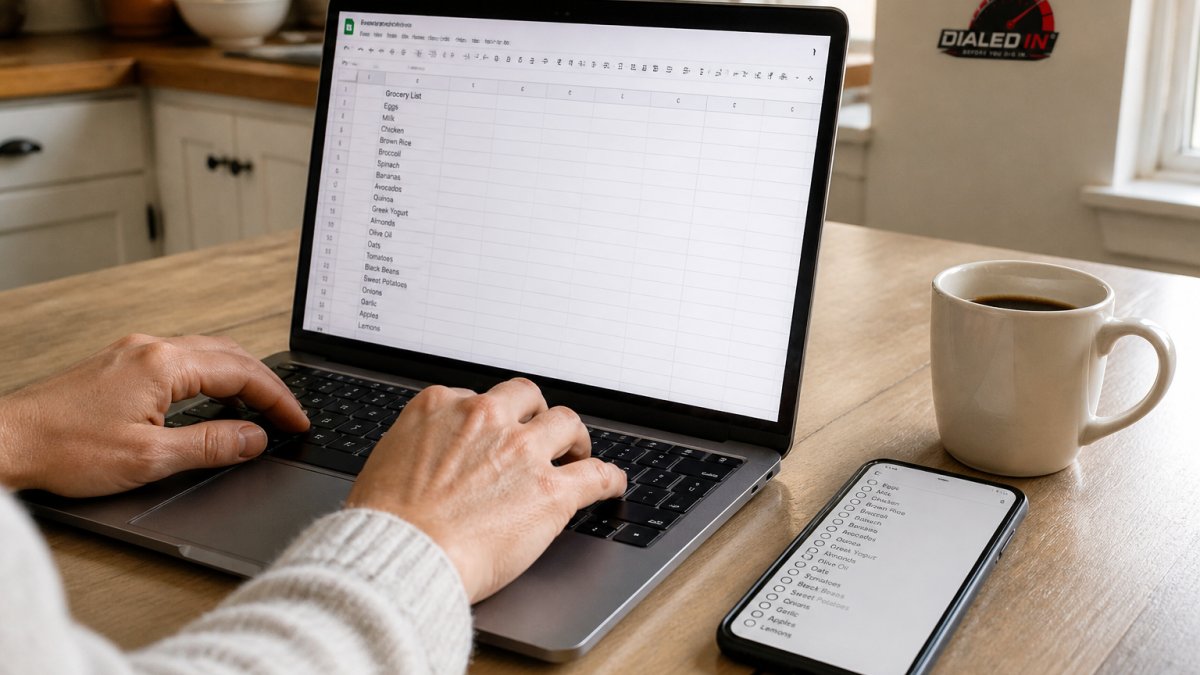
A spreadsheet or dedicated app handles the actual list generation. Google Sheets works well for a DIY setup, while a shopping app handles the same job with less manual setup. The difference is who maintains the logic: you do, or the vendor does.
The Spreadsheet Setup, Step by Step
Start with two tabs, not one. The first tab is your Recipe Ingredients table; the second is your Shopping List output. Keeping inputs and outputs separate is what makes the automation repeatable instead of a one-off copy-paste.
Tab 1, Recipe Ingredients. Use these columns:
Recipe, the dish nameServings Planned, how many servings you are cookingIngredient, the item name, spelled consistently
Tab 2, Shopping List. Use these columns:
ItemTotal QuantityUnit
The Formulas That Do the Work
The core move is a grouped sum. In Google Sheets, SUMIF totals each ingredient across every recipe:
=SUMIF('Recipe Ingredients'!C:C, A2, 'Recipe Ingredients'!D:D)
That pulls every quantity for the ingredient named in A2. To scale by servings, add a servings ratio column in Tab 1 (Servings Planned / Base Servings) and multiply the quantity by it before summing, or use SUMPRODUCT to combine the match and the multiplier in one formula.
For the To Buy column, subtract what you already have:
=MAX(0, B2 - E2)
MAX(0, ...) is the important part. Without it, a pantry item you have more of than you need produces a negative number that looks like a data error.
Handling Duplicates and Unit Mismatches
Duplicates are the most common spreadsheet failure. Three recipes calling for onions should produce one line, and SUMIF handles that automatically because it groups by ingredient name.
Unit mismatches are the second trap. A recipe may call for 8 oz of cheese while another calls for 1 cup. The spreadsheet will happily add 8 and 1 into 9 of nothing useful.
When the App Route Wins
A shopping app or meal planner with grocery list features does the grouping, unit handling, and pantry subtraction for you. The trade-off is control: you cannot customize the logic, and you depend on the app's recipe database matching your ingredients. For households that change meals often and shop from a phone, the app route is faster to set up and harder to break.
Review Before You Shop
Automation generates a draft, not a final list. Before shopping, scan the To Buy column for three things: items already marked On Hand, quantities that look wrong because of a unit mismatch, and one-off items the recipes did not capture. This two-minute review is what keeps an automated list reliable, and it is the step most DIY setups skip.
Step 6: Share the List and Sync Your Household
Sharing the list keeps every household member working from the same version. A shared list means anyone can add or remove grocery items, and changes appear in real time for everyone.
Set up sharing so:
- Every member can add items from their phone
- Edits sync instantly across devices
- Checked-off items update for the whole household
This is where most manual systems break down. A paper list lives in one place. A shared digital list lives everywhere at once, which keeps the household aligned on what is actually needed.
Step 7: Keep the Workflow Reliable and Cut Waste
Reliability comes from a simple weekly rhythm: review the pantry, confirm the week's meals, generate the list, and shop once. Repeat the same order each week so the system stays predictable.
To cut waste and control budget, plan meals around what is already stocked and buy only what the week's menu needs. These strategies for healthy groceries on a budget show how to stretch the same list further.
Frequently Asked Questions
How can I automatically generate a grocery list from a meal plan?
Start with a meal planner that lets you assign recipes to days, then use its built-in feature to pull those recipes into an ingredient list. Most planners let you scale servings, which recalculates quantities for you. If your planner lacks this, copy the week's recipes into a spreadsheet with one column per ingredient and a quantity field, then sort by store aisle. The key is keeping recipes and ingredients linked so changes to the menu update the list automatically instead of forcing a manual rewrite.
Can a grocery list app track what I already have in my pantry?
Yes. A pantry inventory app records what you have on hand, and many let you deduct items as you use them or scan barcodes to add them. When your list generator checks the pantry first, it skips staples you already own, which cuts duplicate purchases and waste. The tradeoff is upkeep: an inventory only works if you update it after shopping and cooking. Set a two-minute weekly check to confirm pantry levels before the list finalizes, and the app does the rest.
What is the best app for tracking grocery shopping lists?
The best pick depends on how you shop. If you want recipes and lists in one place, choose a meal planner with grocery list features. If pantry tracking matters most, pick an app with inventory and barcode scanning. For household sharing, look for real-time syncing so everyone edits the same list. Test one app for a full week before committing, since the workflow that fits your cooking habits matters more than a long feature list. Free tiers are enough to judge fit.
How often should I update my grocery list?
Run a quick update once a week before your main shopping trip, and add items as you notice them running low during the week. A recurring list of staples should be reviewed monthly to catch items you buy less often. If you use a pantry inventory app, check it against the list right before you shop so you don't rebuy what's already on the shelf. Small, frequent updates take minutes and prevent the bigger problem: a second trip to the store midweek.
Food decisions get harder when the fridge is stocked but the plan is unclear. Dialed In is a real-time AI food decision coach that analyzes menus, pantry items, and refrigerator ingredients, then gives personalized recommendations for fat loss, muscle building, or maintenance. No account, no manual logging. Point the camera at any food source and get a clear answer. Get started with Dialed In and turn a stocked kitchen into smarter meals without the guesswork.